Activating HEMS and pairing wallboxes
The wallbox includes its own energy management system that can coordinate up to 12 wallboxes via EEBus. Exactly one wallbox takes the role of central energy manager (CEM); all others are paired with it. This guide walks through activation and pairing.
Activate energy management on the CEM wallbox
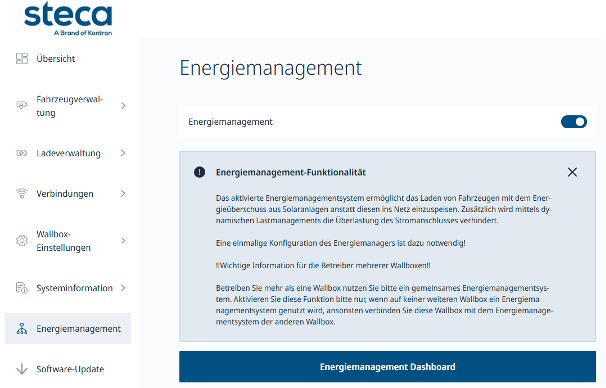
To use the wallbox's built-in load management, one wallbox is chosen as the central energy manager. On its web interface, open the "Energy Management" menu and enable the feature with the toggle. Important: energy management is enabled only on this one wallbox — it stays off on all others.
Open the HEMS dashboard
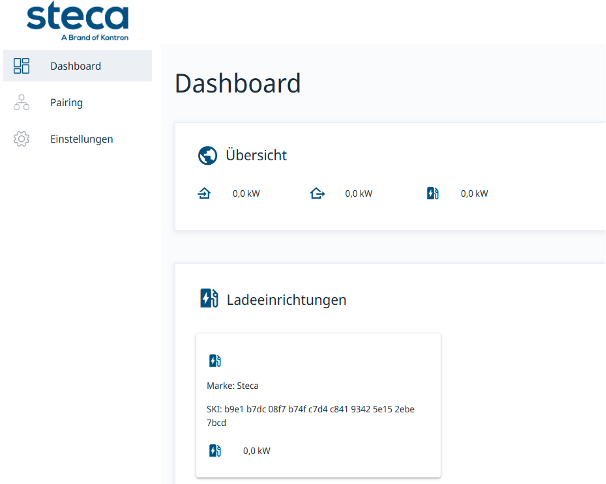
Clicking "Energy Management Dashboard" opens the HEMS. It runs on the same hardware as the wallbox, but is a separate web application with its own menu (Dashboard, Pairing, Settings). The host wallbox appears there automatically as a charging device, listed with its SKI.
Pair the CEM with the host wallbox
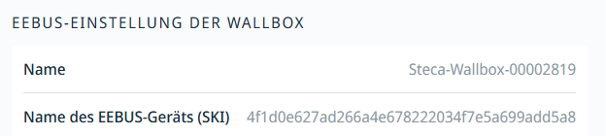
The host wallbox's SKI can be looked up in the web interface under "Connections → EEBus HEMS". In most cases, the pairing between CEM and host wallbox has already happened automatically, so no two-sided confirmation is required here. If the host wallbox does not show up as paired, it can be added manually using the SKI shown in the HEMS.
Find and add additional wallboxes
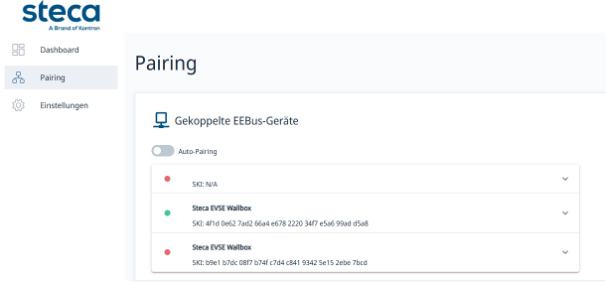
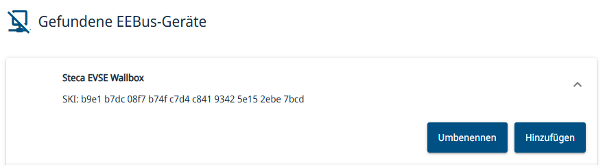
In the HEMS under "Pairing", all EEBus devices on the same network are listed. Under "Discovered EEBus devices", an additional wallbox can be enabled for pairing via the "Add" button; it can optionally be renamed beforehand.
Confirm the pairing on the second wallbox
After adding, the new wallbox first appears in the "Paired EEBus devices" list with a red status — with EEBus, pairing must be confirmed from both sides. Open the added wallbox's web app, go to "Connections → EEBus HEMS", select the central energy manager and pair from there as well. The wallbox then turns green in the HEMS and is ready to use.